LG’s previous flagship Optimus G Pro before G2 had launched in India this summer 2013. The smartphone is an advancement to Optimus G which was launched last year sometime around Nexus 4. Optimus G Pro has one of the best specifications among the smartphones available here in India packing with quad-core processor, full HD display, high resolution camera and lots of software advancements. We reviewed the device and have got our views ready for you which can be read below.

1586 search results for "samsung galaxy j"
Tablet PC
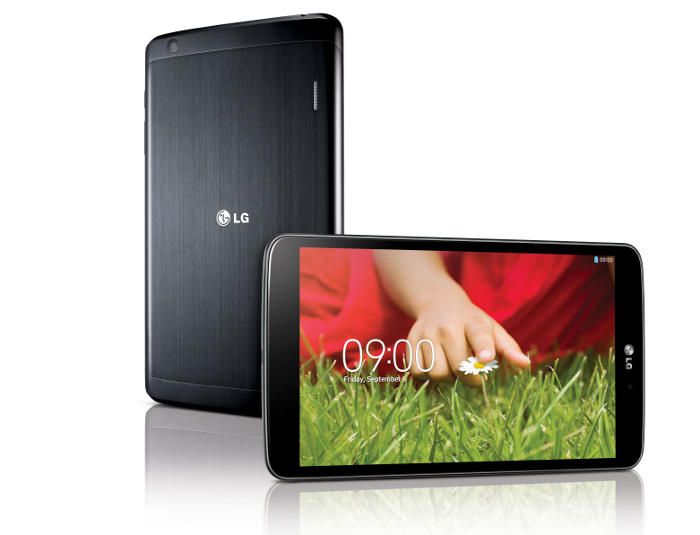
LG G Pad 8.3 Coming To Over 30 Countries By The End Of The Year
by Hans Gogia •
LG G Pad 8.3, company’s next innovation competing with Samsung’s Galaxy Tab has been out by end August 2013 ahead of IFA this year which ended up a day ago. Today there has been news that LG’s G Pad 8.3 shall be available in over 30 countries by the end of this year.
Tablet PC
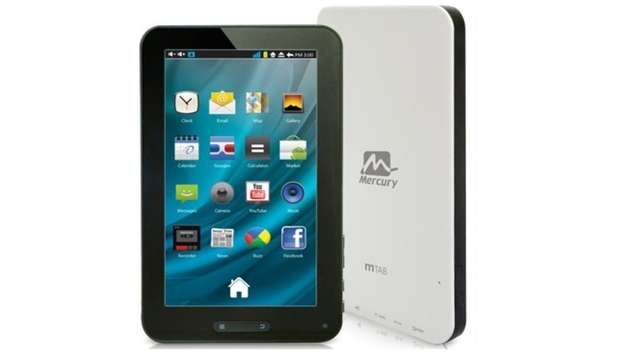
Mercury mTAB Star with Dual-Core Processor and 3G Calling announced in India
by Hans Gogia •
With the advent of 3G calling tablets started by Samsung with the Galaxy Tab, every tablet manufacturer is trying to add more USPs to their product and get their device up in the market. Following the trend Mercury mTAB Star, a new 7-inch tablet has been launched in India by Kobian for the masses.
Smartphone
Micromax Canvas Doodle 2 A240 India Price, Features And Details
by Rohit Khurana •
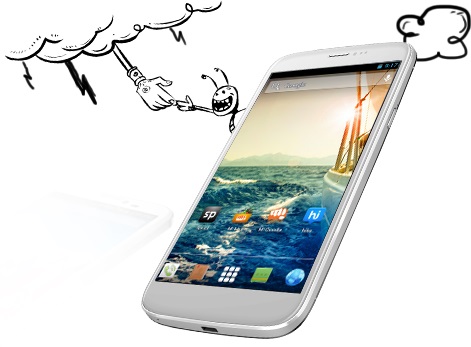
Micromax is going in different direction starting the launch of Canvas 4, which is a good direction in our opinion- which is improving on its own product’s quality. Rather than putting all its money on more fancy specs, now Micromax is going for better build quality products and better features in the Canvas series. Most of our readers were disappointed with Micromax Canvas 4 A210 as it did not offer much different specs compared to Canvas HD A116, but in reality, Micromax has offered something which was missing on its previous phones, is the solid metallic build quality which makes the Canvas 4 special.
With Micromax Canvas Doodle 2 A240, Micromax has continued one more step in direction of improving on product quality. The Doodle 2 is not a revolutionary device, but with a metallic build and features which it offered on the Canvas 4 A210, the Canvas Doodle 2 A240 is set to attract more refined buyers or you can say buyers who are looking for more reliable devices.
How To
[How-to] Enable Lock Screen Widgets On TouchWiz
by Rohit Khurana •
Samsung’s TouchWiz is a custom UI layering on the Android mobile operating system. The latest 4.2.2 update on some of the Galaxy devices have been started rolling out and some of the devices ship with 4.2.2 installed. Touchwiz no wonder is just a layering on Android but it still changes a lot of things which make it different from the vanilla rom which is released by Google.
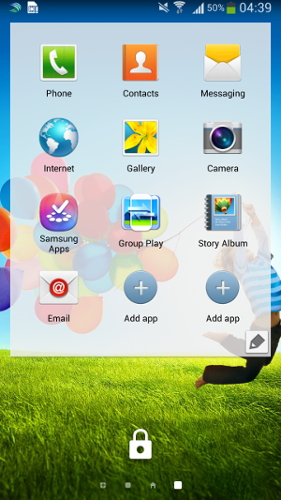
Android 4.2.2 has a prominent feature of lock screen widgets which seem to be very useful for some users. TouchWiz does not enables this by default but instead we have to change it in the settings in order to activate lock screen widgets. Below are the steps to be followed to enable the lock screen widgets on Samsung TouchWiz.
- Go to Settings
- Switch to ‘My Device’ tab
- Tap on the Lock Screen option
- Check Multiple Widgets
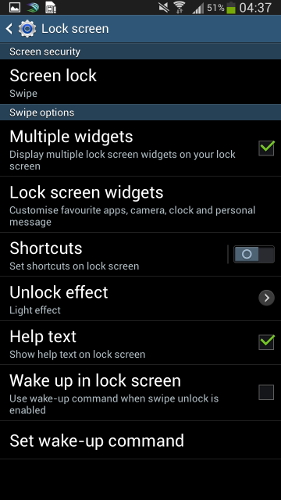
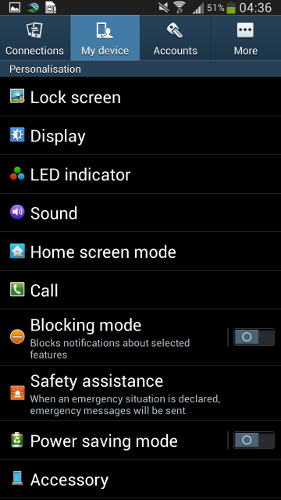
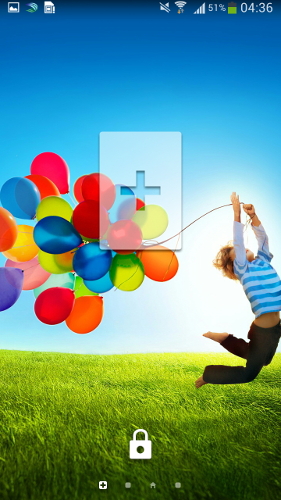
Now your lock screen widgets are activated and you can now swipe on the lock screen to change lock screen widgets. To add lock screen widgets swipe left on the lock screen and select more by tapping on the ‘+’ icon.
Tablet PC
Asus Upgraded Variant of FonePad Now Goes Online For Rs. 17,999
by Hans Gogia •
Few months back Asus launched the FonePad tablet in India for 15,999 with Intel Atom Z2420 1.2 GHz processor with 1GB RAM and 8GB internal memory which can be expanded further via microSD card up to 32GB as its technical specifications. Recently Asus refreshed this FonePad for markets like India with better specs and more memory which appeared online on e-commerce websites for Rs. 17,999.
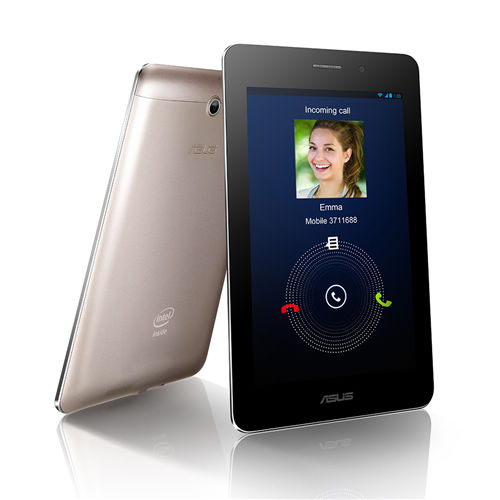
This refreshed variant includes a 7-inch LED display offering 1280×800 pixels resolution same as that on the original model but they have upgraded the chipset from 1.2GHz Intel Atom Z2420 to the 1.6GHz Intel Atom Z2460 which has the same PowerVR SGX540 GPU and 1GB of RAM. It also comes with voice-calling support on 2G and 3G cellular network. On the software front, the tablet runs on the Android 4.1 Jelly Bean out of the box but can be upgraded to version 4.2 later when the update is available. Apart from this one major change is in the internal memory which was 8GB earlier and now has been boosted to 32GB. So users can install a 32GB microSD card slot and get up to 64GB storage on this tablet. Other features remain the same including 3-megapixel rear camera, 1.2-megapixel front facing camera, 4,270mAh battery, and Wi-Fi, Bluetooth support.
Specifications:
- 7inch 1280×710 pixels resolution IPS display
- Intel Atom Z2460 chipset with 1.6 GHz processor
- 1GB RAM
- PowerVR SGX540 GPU
- 32GB internal memory
- microSD card expandble option
- WiFi/3G/Bluetooth support
- 2G with voice calling
- 4,270 mAh non-removable battery
- Micro sim card slot
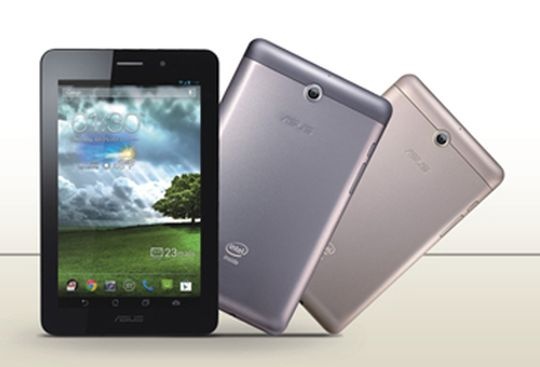
Image Source : Indiatimes
Comparison
Comparing with the recently launched Samsung Galaxy Tab 3 in India this might look like a deal with better specifications but the user base and believe in the brand shall make a difference. Let’s see what Asus can do.
How To
[How-To] Take Screenshots On Any Mobile Operating System
by Rohit Khurana •
Screenshots might not come handy for general masses but it comes very much in use for us bloggers. Screenshot is a screen capture of whatever is running on your current screen. So the next time, when you want to note down some information can be while reservation of some tickets or any transaction numbers after payment just take a screenshot and keep it safe.
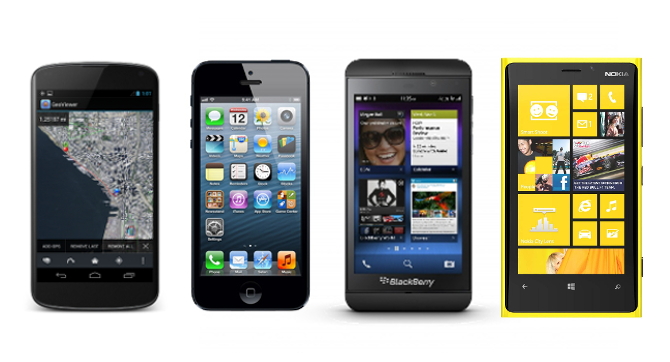
Smartphones today come with inbuilt function for taking screenshots but most of the people don’t know how to use it. It basically is done by a combination of keys which then makes the screenshot stored to the image gallery. Every smartphone operating system no matter iOS, Android, Windows Phone or BlackBerry all have a generic key combination to perform this function which works for both smartphones as well as tablets.
For iOS devices, iPhone or iPad or iPod:
iOS has a standard key combination of Power button + the Home key which takes screenshots and are saved to the Photo Roll.
For Android:
Generic key combination for Android devices are Power button + Vol Down key but Samsung Galaxy Devices work on Power + Home Key. The screenshots taken can be found in Gallery.
For Windows Phone:
Windows Phone prior to Windows Phone 8 does not have this feature. So it is the first WP release having this which follows the similar trend, Power button + Windows key.
For BlackBerry 10 and PlayBook OS:
Even BlackBerry OS did not have this feature inbuilt prior to BB10. For devices on earlier than BB10 needs an application to take screenshots but with BlackBerry 10 and PlayBook OS this can be done by pressing volume up and volume down keys simultaneously.